 Doc Summary

Key Features & Benefits #
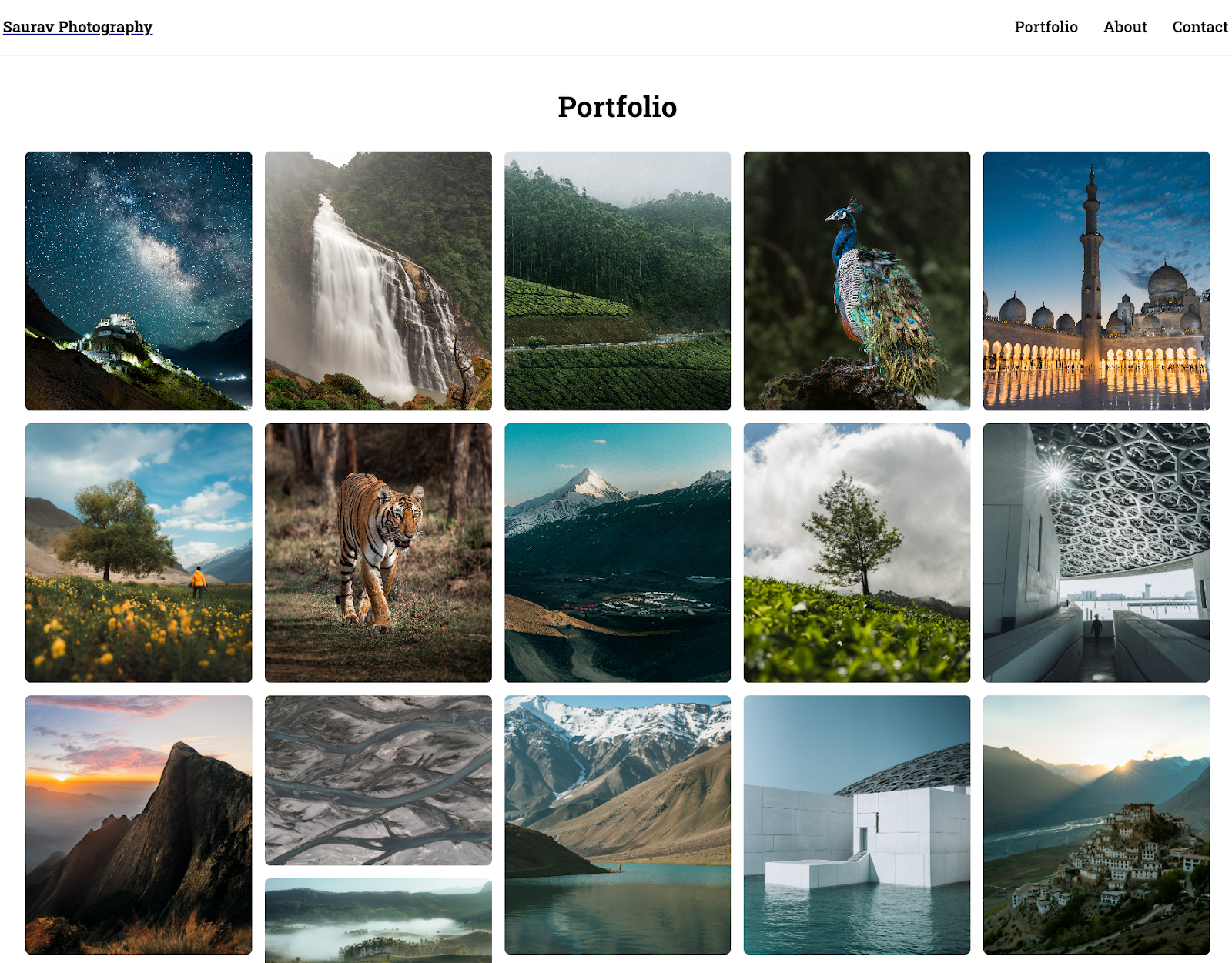
Image Integration: Easily add images to your gallery for a more dynamic presentation.
Lightbox: Showcase your media with lightbox support
Heading Option: Add a custom heading to the gallery to provide context or branding.
Layout Customization: #
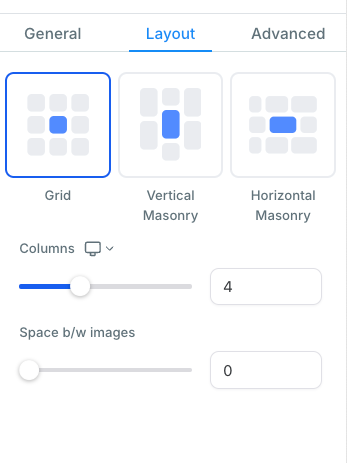
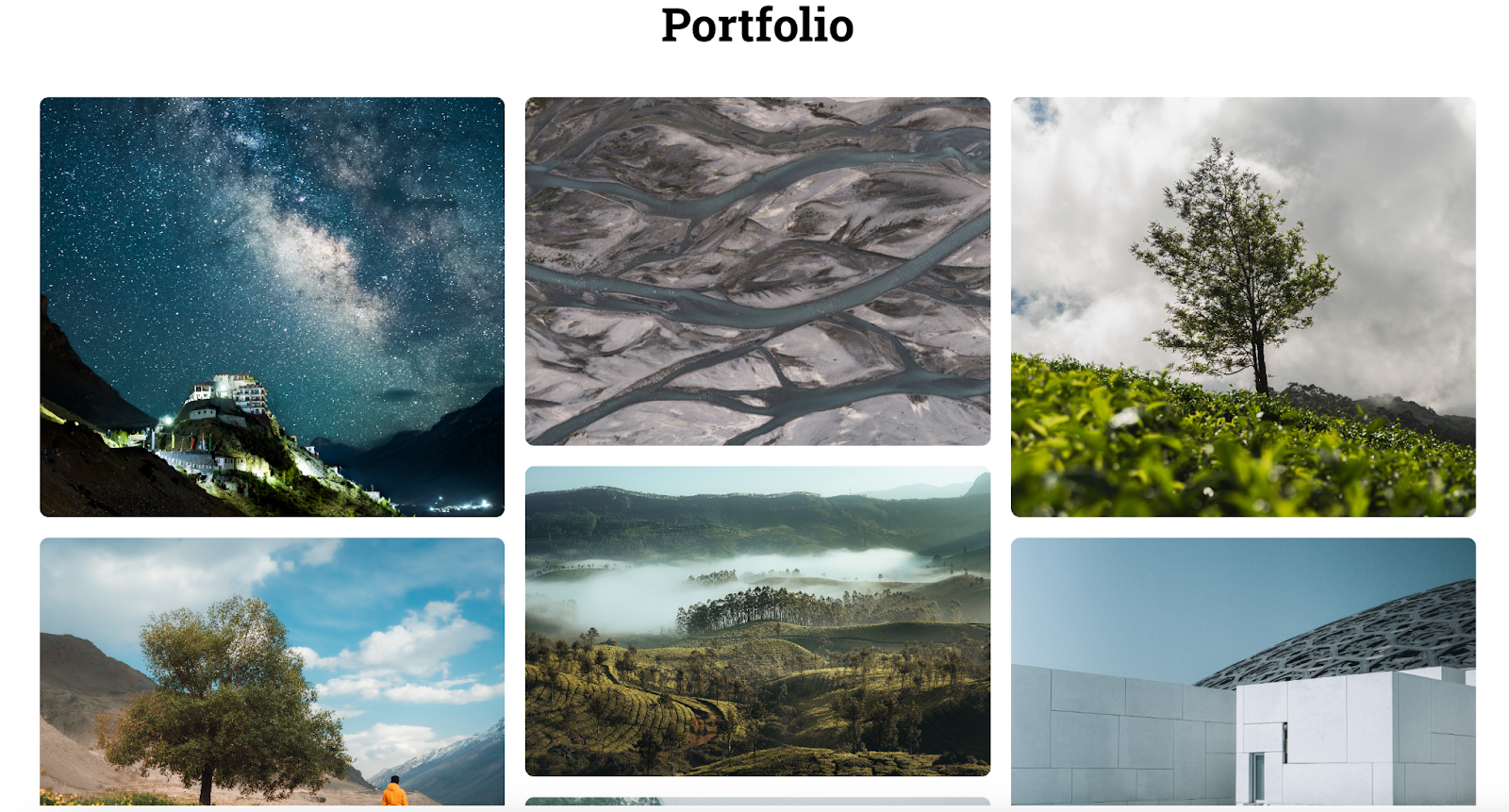
- Grid, Vertical & Horizontal Masonry Layouts: Choose the best way to display your gallery.
- Column Control: Set the number of columns to fit your design.
- Spacing Between Images: Adjust the spacing between gallery items.
- Mobile Behavior: Ensure your gallery is fully responsive with custom settings for mobile devices.
Image Info & Actions: #
- Captions & Descriptions: Add custom captions or descriptions for each image.
- Click Actions: Define actions when an image is clicked (open in lightbox or redirect to a URL).
- Open Link in New Tab: Option to open clicked links in a new browser tab.
- Watermark: Add a watermark to images for branding or protection purposes.
How to Use? #
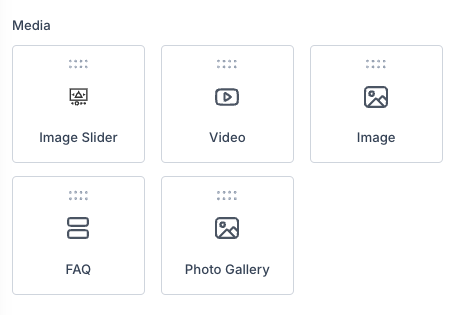
- Navigate to the website or funnel builder and locate the new Photo Gallery widget in the left sidebar.
- Drag and drop the widget onto your desired page section.
-
Customize the gallery:
-
Add Images by selecting files from your media library. (You can also drag and drop files directly into the Media Library modal to upload before adding them to the gallery).
- Set Gallery Layout by choosing between grid or masonry options, and adjust the column count and spacing as needed.
- Configure Mobile Behavior.
- Add captions or descriptions to your images, and choose the action for when users click on the image (open in lightbox or redirect).
-
Apply a watermark to images for added branding or protection if needed.
-