 Doc Summary

Overview #
Pipelines are visual workflow tools that show the progress of leads, deals, or customers from start to finish. Each opportunity moves through defined stages, helping teams understand what actions are needed and where items may be getting stuck.
Updated Pipelines Experience (Labs)
The Pipelines page now uses the HighRise design system for a cleaner, more consistent experience.
To enable this update, go to Sub-account → Labs.
You can access Pipelines from:
Sub-account → Opportunities → Pipelines
Pipelines List View #
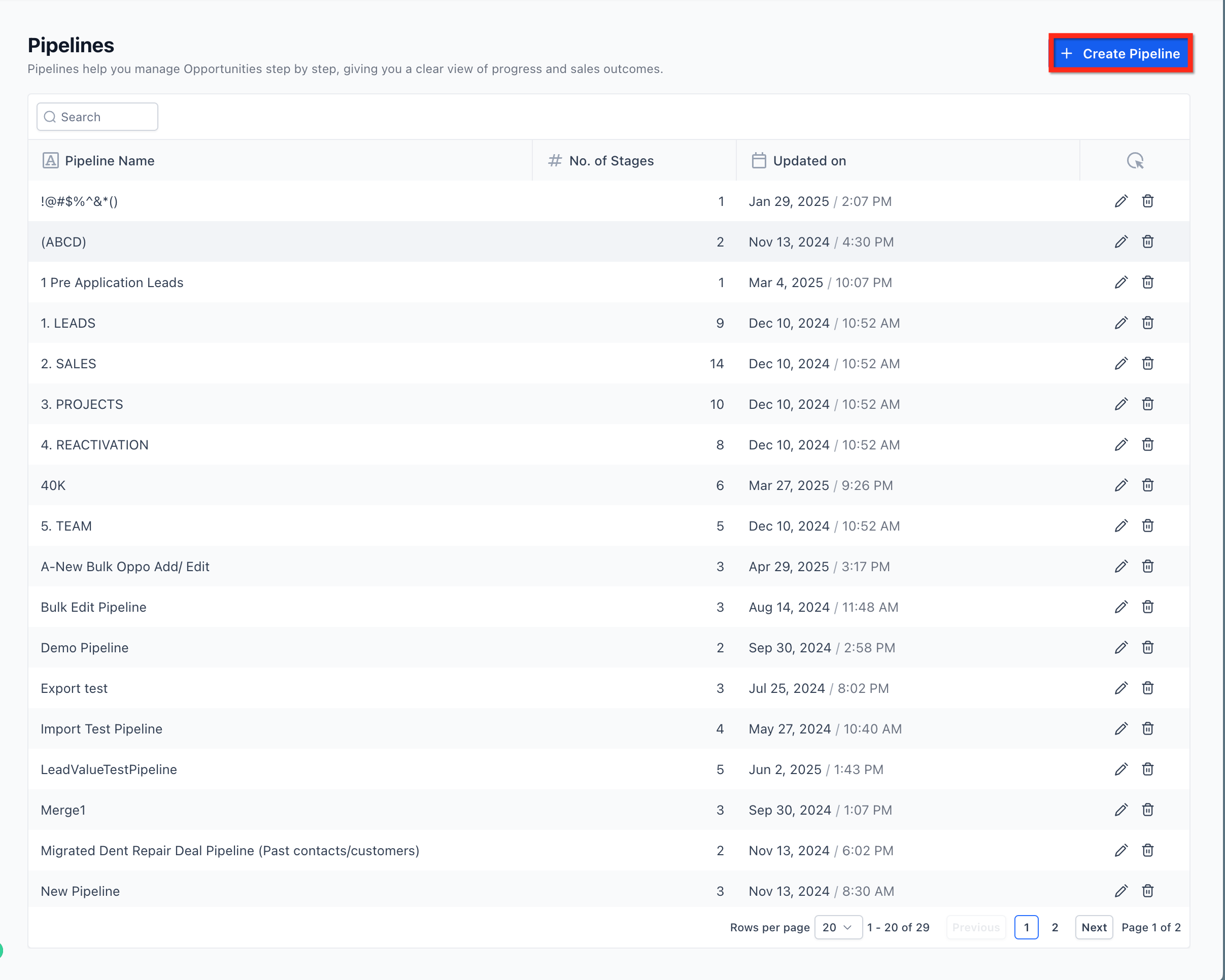
This view displays all pipelines in the sub-account, along with the number of stages in each pipeline and the last updated timestamp.
Why Pipelines Matter #
Pipelines help you:
-
Improve visibility
Instantly see where every opportunity stands in your process.
-
Maintain consistency
Standardize how leads or clients move through your workflow.
-
Increase efficiency
Automate follow-ups, reminders, and task assignments based on stage changes.
-
Track performance
Monitor conversion rates, identify bottlenecks, and measure overall pipeline health.
Pipeline Stages #
A pipeline is made up of stages, with each stage representing a step in your sales or customer journey. Opportunities move from left to right as they progress through the pipeline.
Stages should be clearly defined and action-oriented so users know exactly when an opportunity should move forward.
Editing a Pipeline and Its Stages #
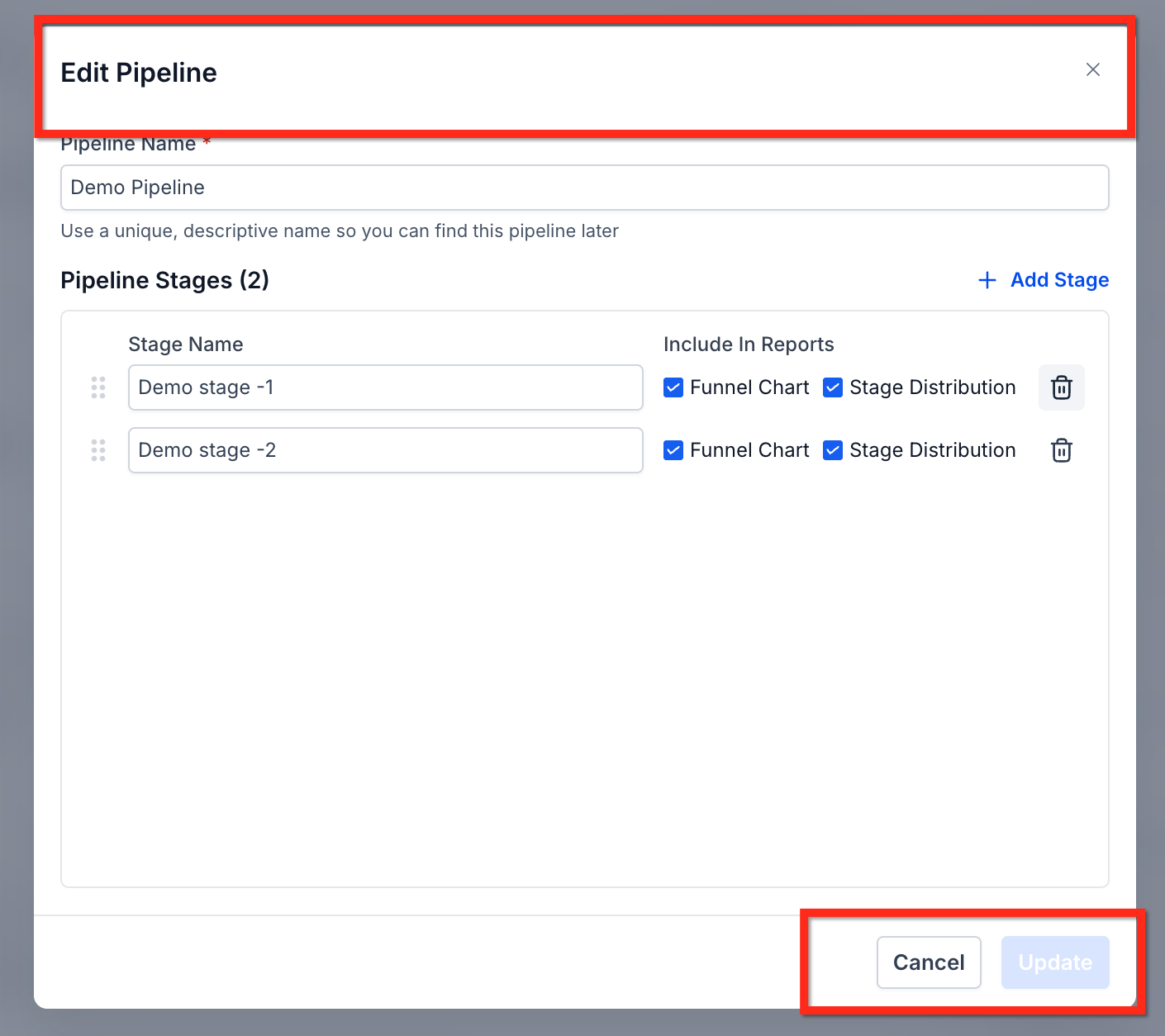
From this screen, you can rename stages, reorder them, control reporting visibility, add new stages, or delete existing ones.
Deleting a Pipeline Stage #
When deleting a pipeline stage, you can now move all existing opportunities to another stage instead of losing them.
How it works #
-
Navigate to Opportunities → Pipelines.
-
Open the pipeline you want to edit.
-
Click the delete icon next to the stage.
-
Select a destination stage to move existing opportunities.
-
Confirm the deletion.
All opportunities from the deleted stage are automatically transferred to the selected stage.
Example Pipeline Stages #
Example: Sales Pipeline #
-
Lead Capture – New inquiries from forms, calls, or chats
-
Qualification – Budget, need, and fit are confirmed
-
Appointment Scheduled – Discovery calls or demos are booked
-
Proposal / Negotiation – Offers are shared and discussed
-
Closing – Opportunity marked as Won or Lost
Example: Service Business Pipeline #
-
New Inquiry
-
Discovery Call Booked
-
Service or Package Selected
-
Payment Collected
-
Onboarding
Tip: Keep stages action-oriented and define clear rules for progression.
Example: Move an opportunity to Appointment Scheduled only after a meeting is confirmed on the calendar.
Best Practices #
Keep It Simple #
Limit pipelines to only the stages that matter most. Too many stages can slow down your workflow and reduce clarity.
Automate Smartly #
Use pipeline-based automation to reduce manual work:
-
Send follow-ups when opportunities stay in a stage too long
-
Assign tasks when deals reach key stages
Review Regularly #
On a weekly or monthly basis:
-
Remove outdated opportunities
-
Update stage definitions as your process evolves
-
Review conversion data and performance trends
Data-Driven Optimization #
Pipelines are more than organizational tools—they provide insight into your business. Use pipeline reporting to answer:
-
Where do opportunities drop off most often?
-
Which stage takes the longest to complete?
-
What is the win rate at each stage?
Use these insights to continuously improve your workflow and conversion rates.
Common Use Cases #
-
Real Estate
New Lead → Property Tour → Offer → Contract Signed → Closed
-
Coaching
Inquiry → Discovery Call → Program Selected → Payment → Onboarding
-
Agency Client Management
Lead → Strategy Call → Proposal → Agreement → Onboarded
These examples can be adapted to fit most industries.
FAQs #
Q: Do I lose opportunities when I delete a pipeline stage? #
No. When deleting a stage, you can choose another stage to move all existing opportunities to.
Q: Is the updated Pipelines experience required? #
No. The updated experience is currently optional and can be enabled from Sub-account → Labs.
Q: Did any pipeline functionality change? #
No core functionality changed. The update focuses on UI improvements and safer stage management.
Q: Do existing automations still work? #
Yes. All existing pipeline-based automations and triggers continue to function normally.


